Contacts are one of the most important types of data on our smartphones. They contain essential phone numbers and details of our family members, friends, office colleagues, and other important connections. We rely on these contacts for both personal and professional daily communication. Therefore, losing contacts from any device, including your Android smartphone, can be distressing and may create serious inconvenience.
There are several reasons, such as accidental deletion, phone reset, system crash, software update failure, or syncing issues with Google accounts, why contacts get deleted from your Android phone. Fortunately, deleted contacts on Android can often be recovered, whether you have a backup or not. This article on how to recover deleted contacts on Android explains all the possible methods to restore lost contacts, both with and without backup. Let’s get started!
Common Reasons for Contact Deletion on Android
Understanding the exact cause of contact loss on your Android phone helps you determine an adequate recovery method. Some main reasons why contacts usually get deleted include:
- Your contacts might have been accidentally deleted while removing duplicates or cleaning phone storage.
- Any sort of Google account sync problems on your Android phone can cause contacts to disappear or fail to update properly.
- Performing a factory reset on your phone, especially without backup, leads to permanent deletion of all stored contacts.
- Failed or interrupted phone OS updates may result in unexpected contact data loss.
- Sometimes, a virus or malware infects your phone and can corrupt contact data or delete it without warning.
Things to do Immediately After Contact Deletion
If you find contact deletion from your Android phone, it’s important to follow the below precautions first:
- Immediately stop saving new data on your phone to prevent overwriting
- Turn off mobile data and Wi-Fi to prevent auto-sync that may permanently remove contacts from cloud backups.
- Do not add, edit, or save new contacts, as this can reduce the chances of successful contact recovery.
- Check whether contacts are hidden instead of deleted by adjusting contact display or filter settings in the Contacts app.
Now, let’s explore different recovery methods in detail.
How to Recover Deleted Contacts on Android with Backup?
If you are good at maintaining backups of your files and folders on your Android device, recovering deleted contacts will be easy and quick. Here are different backup options that you can try to restore deleted contacts using backups:
Method 01: Recover Contacts from Google Contacts
Most Android phones provide a built-in backup feature which lets you automatically sync contacts with a Google account. This feature helps keep your contact list safe and accessible across multiple devices. Follow the below steps to recover deleted contacts from Google Contacts:
- Firstly, open the web browser on your Phone or PC.
- Visit Google Contacts and sign in using the same Google account linked to your phone.
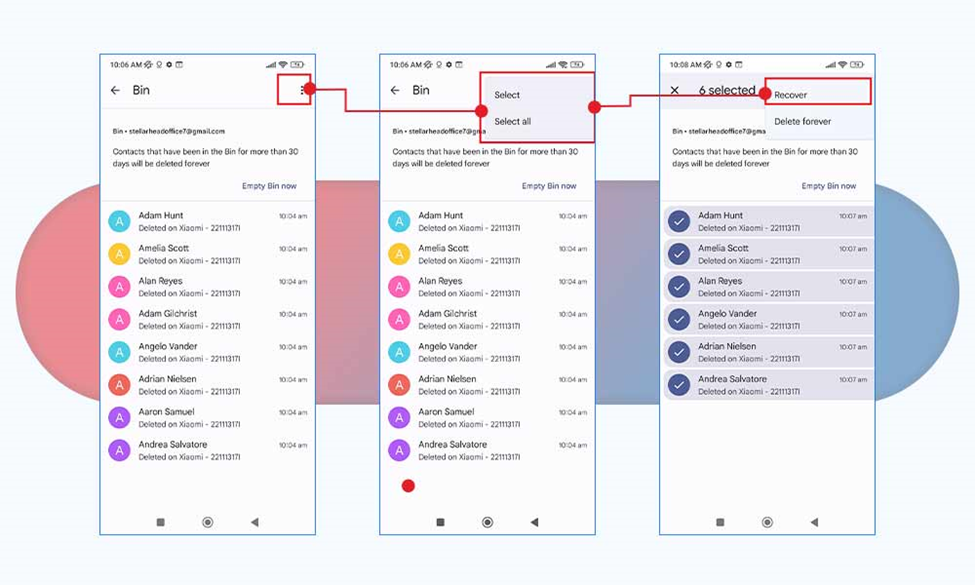
- Go to Trash/Bin from the left navigation pane.
- From the list of deleted contacts, click the three dots icon from the top-left corner.
- Now, tap the Select or Select All option from the pop-up box, and click Recover. All your lost Android contacts will be restored to your device.
Method 02: Recover Contacts from Google Drive Backup
Another backup alternative that you can check to recover deleted contacts on Android is by using Google Drive backup. To recover your contacts:
- Go to Settings > Google > Backup.
- Check if the contacts have backed up earlier.
- To restore, you must factory reset the phone
- Now, sign in with the same Google account.
- Select Restore from Backup and wait till the process completes.
Note: Data recovery using Google Drive backup restores the entire backup, not only contacts.
How to Recover Contacts on Android without Backup?
Instances may happen where you don’t have any backup of your lost contacts. In such cases, you can follow the below methods to recover deleted contacts on Android without backup:
Method 01: Restore Contacts from Built-In Apps
Many latest Android smartphone manufacturers, such as Samsung, Realme, Huawei, OPPO, etc., offer built-in cloud backup recovery options to help you recover deleted data like contacts, messages, photos, and settings. If enabled earlier, they automatically back up contacts and allow easy restoration when data is lost.
Here’s how to recover deleted contacts from your device’s cloud backup (here we have taken Samsung Cloud as example):
- Launch the Settings app and scroll to Accounts and Backup.
- Now, click on Samsung Cloud and sign in using your Samsung account if required.
- Select Restore data, then choose Contacts from the list of data types available for restoration.
- Tap Restore and wait for the process to complete successfully.
Once the restoration finishes, all backed-up contacts will reappear in the Contacts app.
Method 02: Use Third-Party Android Data Recovery Software
If you don’t have any backup, recovery becomes more challenging but still possible. Some professional third-party data recovery software for Android, such as Stellar Data Recovery for Android, are especially designed to recover deleted data on your phone without any backup. You can use this tool to restore deleted files of various types, including photos, videos, documents, contacts and many more. This tool performs a thorough scan of your device’s internal storage to find deleted contact data.
Key Features of Stellar Data Recovery for Android:
- The software offers recovery of deleted files in three steps. i.e., Select, Scan and Recover, which makes it user-friendly even for beginners.
- You don’t need to root your Android device for basic contact and file recovery.
- It lets you preview the recoverable contacts and other files before actually restoring them.
- This tool is compatible with a wide range of Android versions — from Android 6.0 through the latest versions — covering most modern devices.
Here’s how to recover deleted contacts on Android using this professional Android data recovery software:
Step 1: Download and install the Stellar Data Recovery for Android software on your computer. Also, connect your Android phone to that computer using a USB cable.
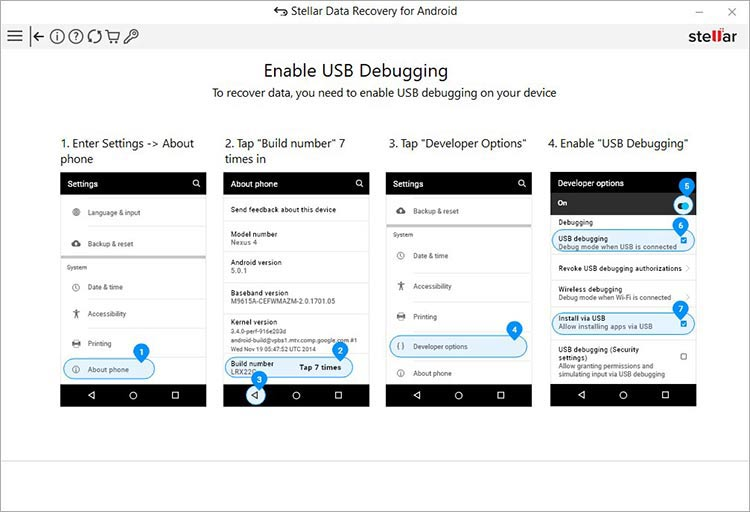
Step 2: Follow the below steps on your phone to Enable USB Debugging on it.
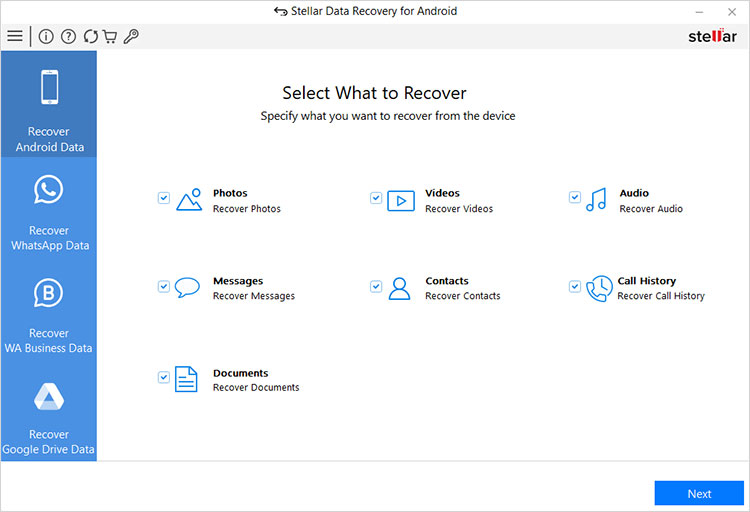
Step 3: Launch the software and from the homepage, select Contacts as the data type to recover and click Next to continue.
Step 4: Click Scan to search for deleted contacts and wait till the scanning process completes.
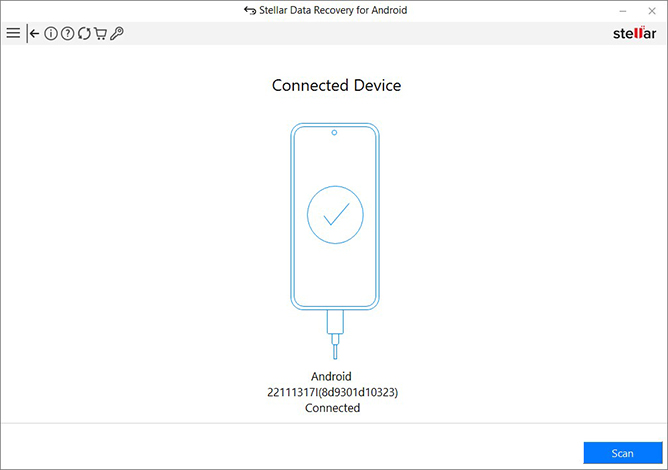
Step 5: After scanning, preview the recoverable deleted contacts and select the one you want to restore. Click Save to save recovered files to a safe location on your computer.
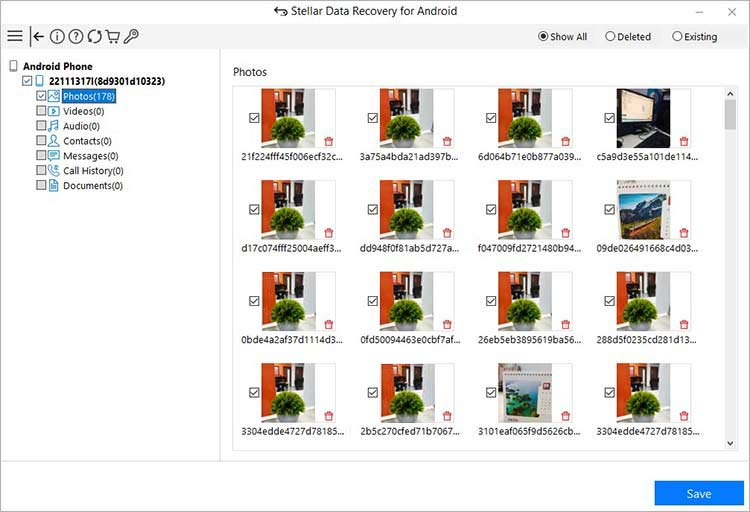
That’s it—your deleted Android contacts are recovered quickly and safely.
Wrapping Up
Losing important contacts on your Android smartphone can be stressful, but there’s always a chance to restore them. If you have backups via Google, cloud services, or SIM, recovery is quick and easy. Even without a backup, you can try Android data recovery software such as Stellar Data Recovery for Android to retrieve deleted contacts. The key is to act fast, stop using the phone, and try recovery methods in the right order. Finally, always enable backups and sync to avoid future data loss.